How to Unlock the Hidden Windows 11 CPU Boost Setting
Published by VerseZip Tech Desk
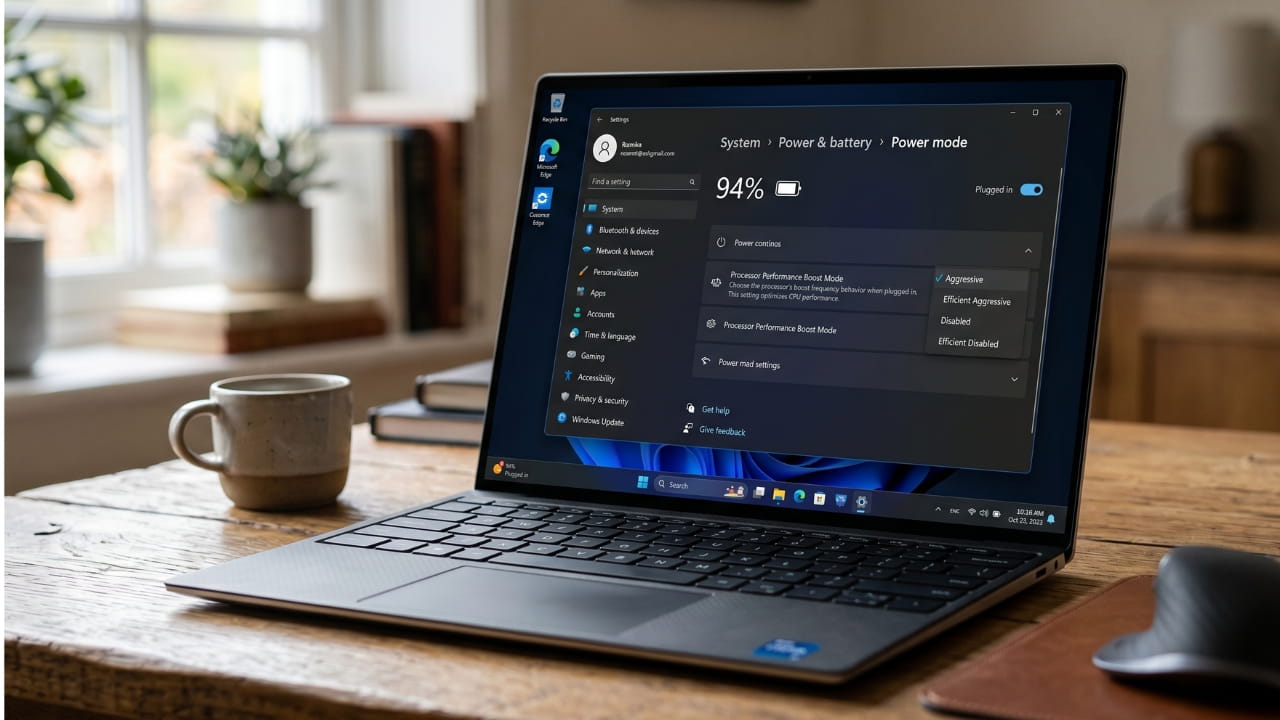
PC users constantly search for ways to make their computers run faster and last longer on a single charge. You can easily achieve this by unlocking a hidden Windows 11 CPU boost setting buried deep within the operating system. This simple tweak gives you complete control over how your processor handles heavy workloads and power consumption.
Accessing the Processor Performance Boost Mode
By default, Microsoft hides advanced processor power management tools from regular users. To reveal these secret options, you must open the Windows Registry Editor and modify a specific system file. You navigate through the registry to the "PowerSettings" folder and locate the specific key ending in "4f3749d470c7". Once there, you simply change the "Attributes" value from the number 1 to the number 2.
Quick Registry Guide
Warning: Editing the registry incorrectly can cause system issues. Always backup your registry before making changes.
Choosing the Right CPU Mode for Your Needs
After modifying the registry, Windows uncovers a brand new menu called "Processor Performance Boost Mode" inside your advanced power settings. Standard users normally only see minimum and maximum processor states in this menu. Now, you gain access to seven distinct performance modes that dictate exactly how your computer speeds up. You can easily switch between these modes depending on whether you need raw processing speed or maximum battery life.
| Performance Mode | Best For | Power Usage |
|---|---|---|
| Aggressive | Gaming, Video Editing | High |
| Aggressive At Guaranteed | High-Performance Workloads | High |
| Efficient Enabled | Battery Life Priority | Low |
| Efficient Aggressive | Balanced Performance | Moderate |
Maximizing Speed With Aggressive Modes
Gamers and video editors require their processors to run at maximum speeds constantly. Selecting the "Aggressive" mode forces your CPU into a faster, sustained boost behavior for heavy workloads. Alternatively, the "Aggressive At Guaranteed" setting pushes the processor to deliver maximum performance entirely above its baseline frequency level. These specific modes consume significantly more electricity but guarantee smooth performance during demanding computer tasks.
CPU Mode Recommendations
- Gamers: Use "Aggressive" for maximum frame rates
- Video Editors: Use "Aggressive At Guaranteed" for stable rendering
- Office Workers: Use "Efficient Aggressive" for balanced work
- Travelers: Use "Efficient Enabled" for extended battery life
- Casual Users: Use "Efficient Enabled" for daily tasks
Balancing Battery Life With Efficient Modes
Laptop users traveling without a charger need their batteries to last all day. The "Efficient Enabled" mode instructs the system to prioritize power savings while only requesting extra speed when absolutely necessary. For a perfect middle ground, the "Efficient Aggressive" setting constantly balances raw performance against careful battery conservation. These efficient options stop your laptop from overheating and keep you working longer away from the wall outlet.
Frequently Asked Questions
What is the hidden CPU boost setting in Windows 11?
The hidden setting is called the Processor Performance Boost Mode. It allows you to control exactly how aggressively your computer processor speeds up during heavy tasks.
How do I unlock this secret power management tool?
You unlock the tool by changing a specific value inside the Windows Registry Editor. You must change the "Attributes" value of the power settings key from 1 to 2.
Which CPU mode should I use for PC gaming?
Gamers should select the "Aggressive" mode to maintain high clock speeds during gameplay. This setting prioritizes raw processing power over battery efficiency.
Does changing the CPU mode improve laptop battery life?
Yes, selecting the "Efficient Enabled" mode actively extends your daily battery life. This specific setting restricts unnecessary processor boosting to conserve electricity.
Is it safe to modify the Windows Registry?
Editing the registry is generally safe if you follow instructions carefully. Always backup your registry before making any changes to avoid potential system issues.
Final Thoughts
Taking control of your operating system allows you to match your hardware performance perfectly to your daily routine. Apply this quick registry tweak today to experience faster processing speeds and significantly longer battery life on your machine.
Whether you are a gamer seeking maximum frame rates or a professional needing all-day battery life, this hidden Windows 11 setting gives you the flexibility to optimize your system exactly how you want it. The registry modification takes less than five minutes but delivers noticeable results immediately.
Remember to restart your computer after applying the changes to ensure the new settings take effect properly.
Source: ProPakistani
Share this Technology Update:
Leave a Comment
Your feedback is important to us. Submitted comments are kept private and are for internal review only.