Over 100 Malicious Chrome Extensions Found Stealing Data — Check Your Browser Now
Published by VerseZip Tech Desk
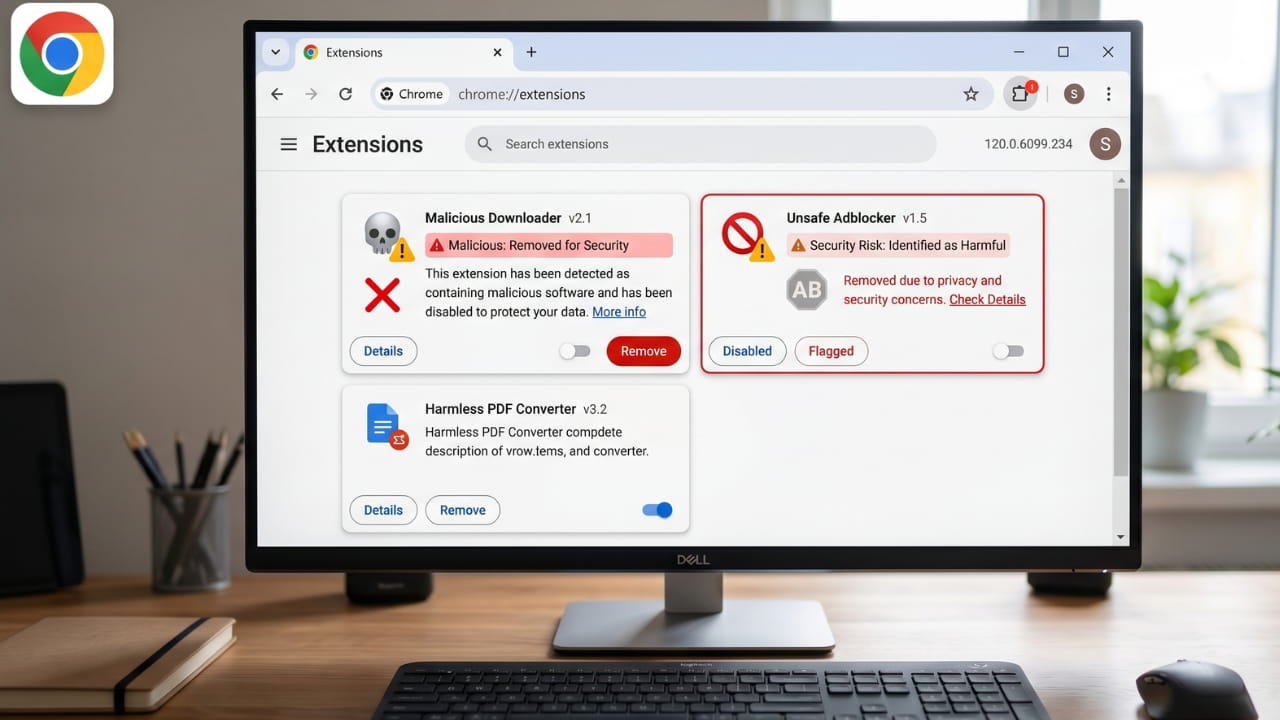
If you use Google Chrome, you need to check your browser extensions right now. Cybersecurity researchers have uncovered a massive campaign involving 108 malicious extensions that were quietly stealing user data, hijacking Telegram accounts, and injecting unwanted ads.
These extensions appeared perfectly normal on the surface. They offered useful features like Telegram tools, YouTube enhancers, games, and translation services. But behind the scenes, all of them were connected to the same command-and-control server, indicating a coordinated criminal operation.
What These Malicious Extensions Could Do
The extensions were categorized into several types, and each had its own malicious capabilities.
| Category | Number of Extensions | What They Did |
|---|---|---|
| Telegram Session Stealers | 1 (active) + 1 (staged) | Hijacked Telegram accounts every 15 seconds |
| Google Account Harvesters | 54 | Stole email, name, profile picture, and persistent Google ID |
| Universal Backdoor | 45 | Opened any URL on browser start (could install malware) |
| Ad Injectors | 5 | Injected gambling ads into YouTube and TikTok |
| HTML Injectors | 78 | Could inject malicious code into extension pages |
Most Downloaded Malicious Extensions
| Extension Name | Approximate Installs |
|---|---|
| Web Client for TikTok | 2,000+ |
| Web Client for Telegram - Teleside | 1,000+ |
| YouSide - Youtube Sidebar | 1,000+ |
| Web Client for Youtube - SideYou | 1,000+ |
| Formula Rush Racing Game | 1,000+ |
| Telegram Multi-account | 1,000+ |
| Speed Test for Chrome - WiFi SpeedTest | 1,000+ |
How to Check If You Have These Extensions Installed
| Method | Steps | Best For |
|---|---|---|
| Via Chrome Menu | Click three-dot menu > More Tools > Extensions | Quick visual check |
| By Extension ID | Go to chrome://extensions/ > Toggle Developer mode > Compare IDs | Most accurate |
| Check Extensions Folder | Navigate to C:\Users\Username\AppData\Local\Google\Chrome\User Data\Default\Extensions | Thorough verification |
What to Do After Removing the Extensions
If You Used a Telegram Extension
- Open the Telegram app on your phone or desktop
- Go to Settings > Devices
- Click "Terminate all other sessions"
- This will log out all web sessions, including any that were hijacked
If You Signed Into a Malicious Extension with Google
- Go to myaccount.google.com
- Click Security on the left
- Scroll to "Third-party apps with account access"
- Review the list and remove any suspicious apps
- Consider changing your Google password as an extra precaution
General Security Steps
- Run a full antivirus scan on your computer
- Clear your browser cache and cookies
- Monitor your accounts for suspicious activity over the next few weeks
How to Stay Safe in the Future
| Check | What to Look For |
|---|---|
| Number of users | Avoid extensions with very few downloads |
| Reviews | Look for genuine user reviews (not generic praise) |
| Last update | Avoid extensions that haven't been updated in 6 or more months |
| Permissions requested | If a game needs access to all your browsing data, that is a red flag |
| Developer name | Check if the developer has other legitimate extensions |
Frequently Asked Questions
How many malicious Chrome extensions were found?
Security researchers from Socket identified 108 malicious extensions on the Chrome Web Store. They were published under five different developer accounts but all connected to the same command-and-control server.
How many people downloaded these extensions?
The malicious extensions collectively had approximately 20,000 downloads from the Chrome Web Store.
What could these extensions do to my computer?
The extensions could hijack your Telegram account every 15 seconds, steal your Google account information (email, name, profile picture), open any URL in your browser without your permission, inject ads into YouTube and TikTok, and collect your browsing data.
How do I check if I have these extensions installed?
Go to chrome://extensions/ in your Chrome browser. Review the list of installed extensions. If you see any suspicious names, click Remove. For full verification, toggle Developer mode to see extension IDs.
I used a Telegram extension from this list. What should I do?
Open the Telegram app, go to Settings > Devices, and click Terminate all other sessions. This will log out all web sessions, including any that were hijacked.
I signed into a malicious extension with Google. What should I do?
Go to myaccount.google.com > Security > Third-party apps with account access. Remove any suspicious apps. Consider changing your Google password as an extra precaution.
The Bottom Line
Over 100 malicious Chrome extensions have been discovered stealing user data, hijacking Telegram accounts, and injecting ads. These extensions appeared legitimate and functioned as advertised on the surface, but malicious code ran silently in the background.
If you have any of these extensions installed, remove them immediately. Then take the post-removal steps to secure your Google and Telegram accounts.
The Chrome Web Store is generally safe, but it is not perfect. These 108 extensions were available for download, and at the time of Socket's report, many were still live despite being reported to Google.
Do not wait for Google to remove them. Check your browser now. Your data is worth protecting.
This article was last updated on April 16, 2026, based on research published by Socket's Threat Research Team. The full list of malicious extensions and their Chrome Extension IDs is available in Socket's report.
Share this Tech Update:
Leave a Comment
Your feedback is important to us. Submitted comments are kept private and are for internal review only.